Add-on guide · ৳75 a month
Restock Alerts: back-in-stock SMS alerts for WooCommerce
Nishchit's WooCommerce back in stock alert: customers leave their number on a sold-out product's page. When the stock is back they get one SMS with the product link, first come, first served.
When a popular item runs out, “in stock?” comments pile up on your page, and by the time the stock arrives those people are impossible to find. Restock Alerts keeps the numbers in one list, sends the SMS by itself when the stock is back, and later shows how many of them bought.
What you need: Push SMS connected to Nishchit with a balance, and Text customers (SMS) switched on under Nishchit → Features. The “how many to text” rule works on products whose stock WooCommerce counts.
What the customer sees
Product page and SMSOn a sold-out product's page, right under the stock line, a small form: “This product is out of stock”, a mobile number box, an optional name, and the “Tell me when it's back” button. On a product with sizes, the form appears when the customer picks the size that has sold out. When every size has sold out, it shows from the start.
After the number is given, the form is replaced by “Thank you! We'll send an SMS to 01712-345678 when it is back.” No SMS goes out then. The SMS goes only when the stock is back, once.
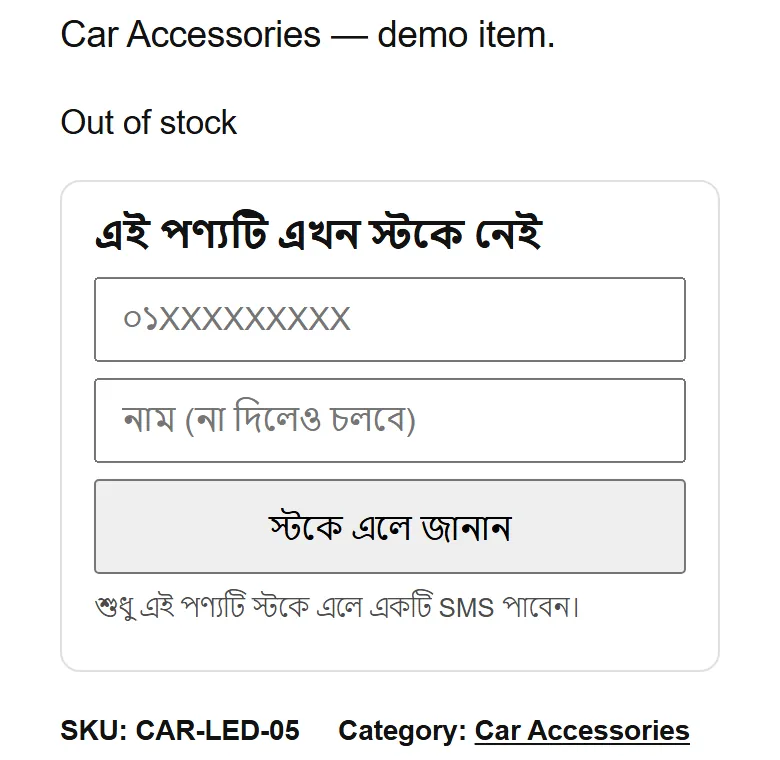
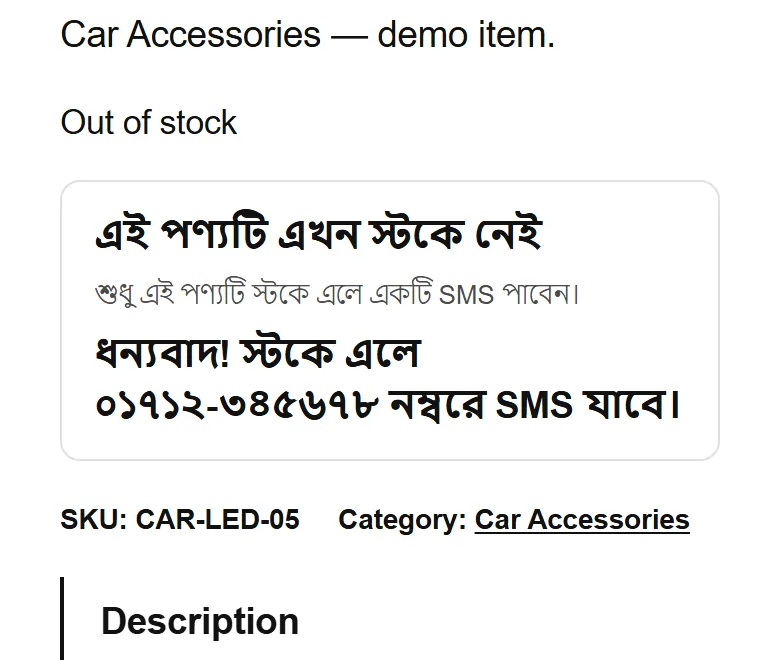
When the stock is back, the customer's phone gets an SMS like this (sent in Bangla by default; shown here in English):
SMSShop name: Back in stock: Tyre inflator. Order: yourshop.com/r/Kb7Qm
Push SMS puts the shop name at the start by itself. The link is a short link on your own domain: it opens the product page directly, with the size already chosen if it was a size. Both the link being opened and the order that follows are counted.
A customer who comes in through the short link sees a line at the bottom of the product page: “Don't want stock SMS any more? Stop”. Pressing “I don't want SMS any more” there puts the number on the shop's do-not-text list (Numbers never to text, on the Incomplete orders tab of Nishchit's settings) and cancels everything that number was waiting for. Numbers on that list get none of the shop's reminder SMS either.
Setup
Steps 1–6-
1
Switch the add-on on
On the Nishchit → Add-ons page, switch on this add-on's card and save, then press Open settings. The add-on's own page has a switch at the top too, which also turns it on and off.
At the top of the Restock Alerts page, three figures: how many people are waiting now, how much credit Push SMS has, and whether the shop name goes at the start of each SMS.
-
2
Check the form's wording
The first panel of the settings, the form for sold-out products. Customers see all four lines, in Bangla from the start:
Form headingDefault “This product is out of stock”.
Button textDefault “Tell me when it's back”.
Consent lineDefault “You will get one SMS only when this product is back in stock.” It is just text, not a tick box.
After signing upThe thank-you note. Write {phone} and the customer's number goes there.
Clear a box and save, and the default text comes back. If you don't want the form on a particular product, edit that product and tick “No restock waitlist” in its Inventory tab.
-
3
How many, and when: the round rules
When the stock is back, not everyone is texted at once. Each time a “round” goes out, in the order people signed up.
People per unitDefault 3. When 5 units come back, the first 15 people get the SMS. Not everyone buys, so a few more people than units are told; tell far too many and most of them arrive to find it sold out.
Hours before the next groupDefault 2. If the stock is still there 2 hours after a round, the next group gets the SMS.
Fewest units that count as backDefault 1. Fewer than this coming back is not treated as “back in stock”.
Wait before sending (minutes)Default 5. Fix a wrongly entered stock within this time and nothing goes out, because the stock is checked again before sending.
Count backorders tooDefault off. Switched on, alerts also go when a product is “On backorder”.
On a product whose stock is not counted there are no units to go by: everyone waiting gets the SMS at once, and a round of more than 200 people asks for your approval.
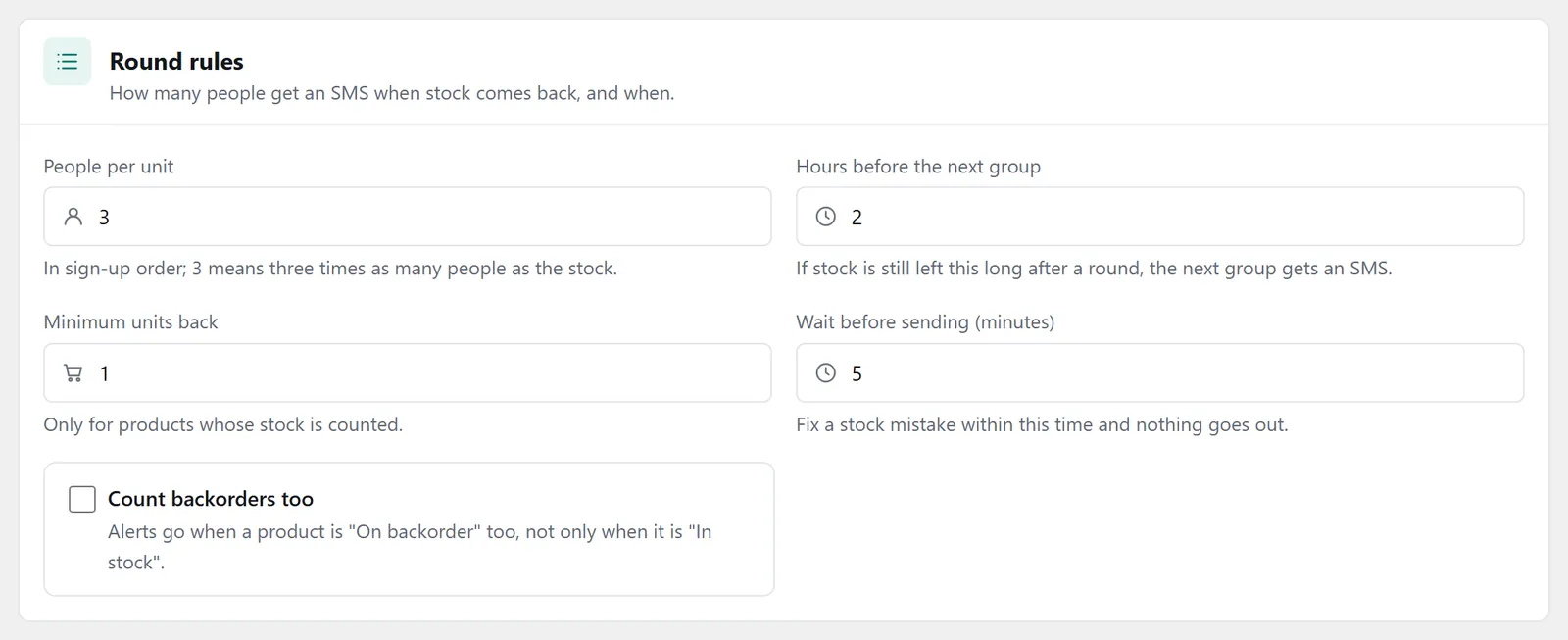
The “Round rules” panel: people per unit, when the next group goes, and the wait before sending -
4
Sending hours and limits
Sending starts / stopsDefaults 9 and 20, meaning from 9 am until before 8 pm, by the shop's clock. Stock that comes back outside those hours gets its SMS the next morning.
Ask me first above this manyDefault 200. A round with more people than this waits for your approval.
Most restock SMS a dayDefault 300, for the whole shop. The rest go the next day.
Most alerts per number per dayDefault 2, across all products.
Keep this much SMS creditDefault 50. The round stops before the balance falls below this, so order SMS keep going. It carries on after a top-up.
The SMS go 50 people every 70 seconds, so the SMS service does not turn them away.
-
5
Choose the message
Language: Bangla by default. If the short Bangla message fits one SMS with the shop name, that goes; if not, the full Bangla one. You can choose Banglish (Bangla in English letters) instead.
Link: a short link by default. Keep it: the short link counts clicks and gives a way to stop the SMS. The product's own address is long and its clicks are not counted.
All three messages can be changed. Available tags: {product} {variant} {price} {link} {shop}. Push SMS puts the shop name at the start by itself, so don't write it again. Under each box it shows how many SMS the message takes. A message longer than three SMS is not sent.
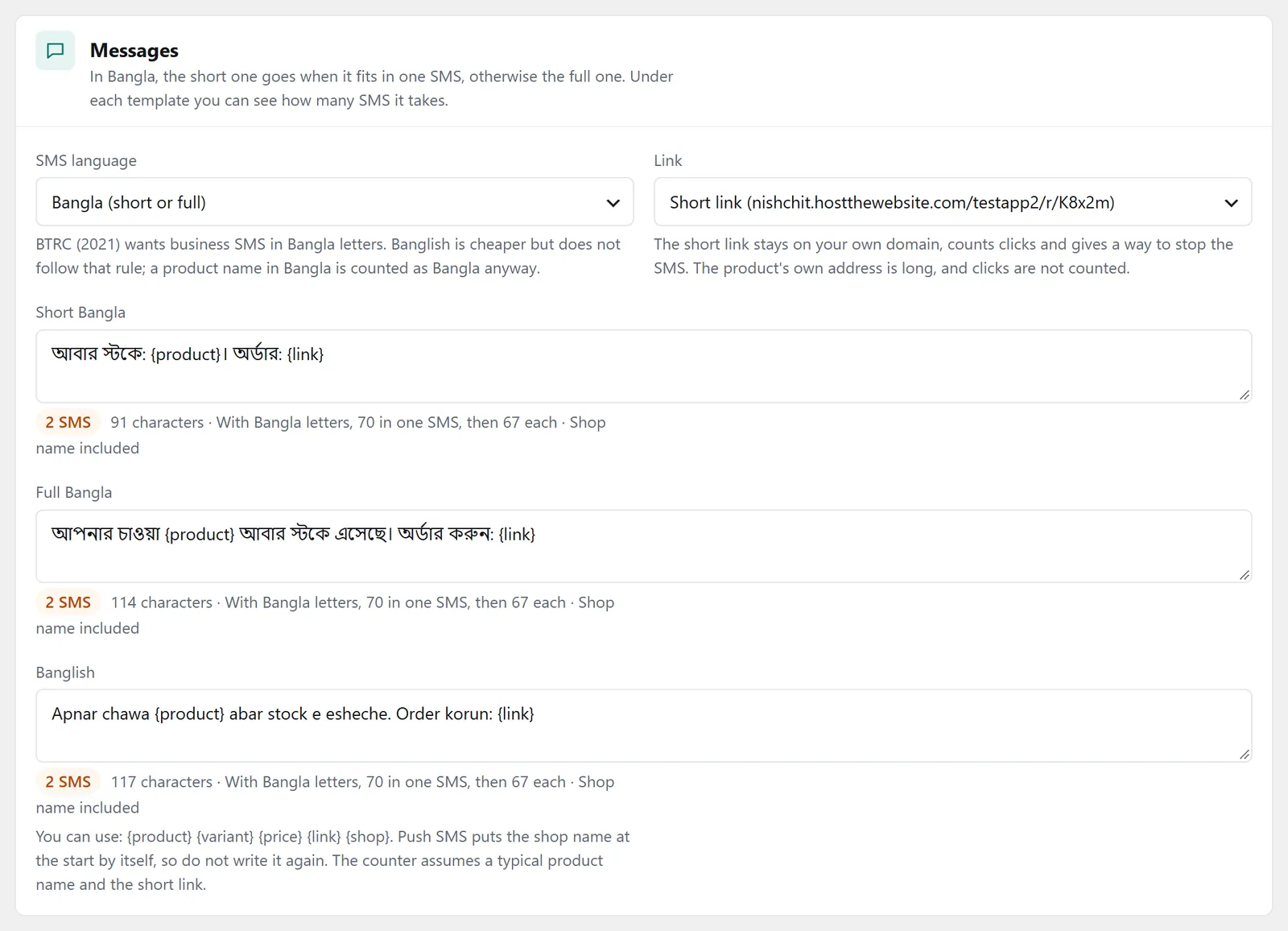
The “Message” panel: language, link, the three texts and how many SMS each takes -
6
Try it once in test mode
Test mode runs every part of a round but sends no SMS to customers: each person is marked “sent (test)”, with the message they would have got in the note. When you have seen it, press “Put the test people back on the list”, then switch test mode off.
Pressing “Preview” beside any product also shows who would get the SMS if a round ran now, who would be left out and why, and which message would go. Nothing is sent in a preview.
Even in test mode, news of the rounds reaches your phone and Telegram. It does not reach customers.
What happens when stock comes back
By itself- It notices the moment stock is back. When a product becomes In stock in WooCommerce, or its stock number goes up, and somebody is waiting, the stock is checked again 5 minutes later and a round is made.
- First come, first served. A number listed twice gets one SMS. Numbers on the do-not-text list and the shop's blacklist are left out.
- It checks the stock again before each group. If the stock runs out partway, the round stops and the rest go back to waiting, keeping their place.
- It waits when the credit runs out. If Push SMS is not working or the balance is used up, the round holds, tries again every hour, and tells you once.
- You hear about it too. When a round starts, finishes, needs approval or runs out of credit, you are told in the app and on Telegram. When something out of stock has 10 people waiting, once a week: “Out of stock but N people want it”.
To send straight away instead of waiting, press “Send now” beside an in-stock product in the “Most wanted” list. That only skips the wait between groups; the sending hours, approval and credit rules still apply.
The waiting list
Staff workThe “Most wanted” section lists each product: how many are waiting, how many joined in 7 days, how long ago the first person asked, and whether it is in stock now. Press “List” beside it to see everyone by name, where they came from (product page, Facebook, Messenger, phone call) and their status. From there you can remove someone, and download the whole list as a CSV file.

Add numbers by hand: paste the “in stock?” comments or messages from your page just as they are, names and words included. Every Bangladeshi mobile number inside goes on the list once; Bangla digits and +880 work. You give the product ID, and a variation ID of 0 means any size. Only for sold-out items, up to 500 numbers at a time.
On the order desk, the clock button at the top opens the “Waiting for stock” list too: who is waiting, a WhatsApp button, and a box for pasting numbers.
The numbers
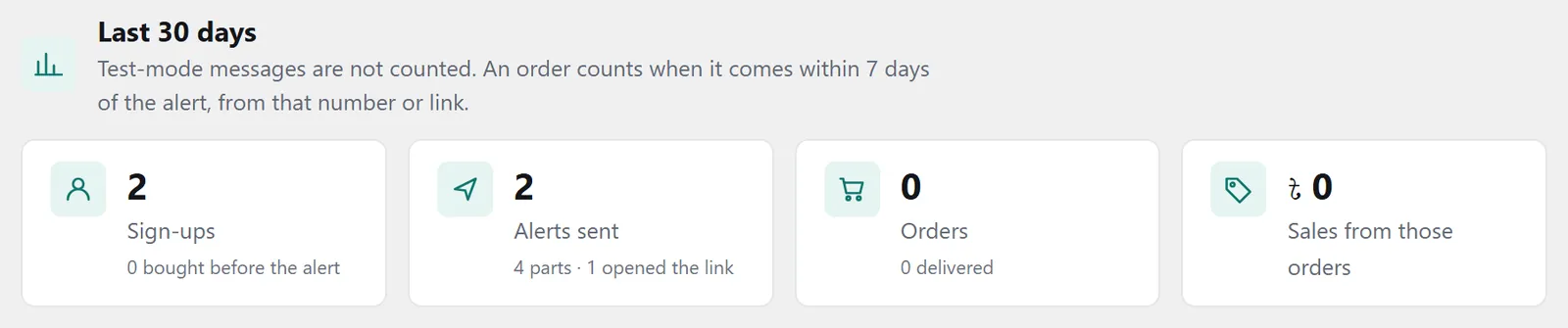
Last 30 daysHow many people left a number, form and hand-added together. Underneath: how many bought on their own while still waiting.
How many people got the SMS, how many parts it took, and how many opened the link.
How many orders came in after the alert, and how many of them were delivered.
The full amount of those orders, not only that product.
An order counts if, within 7 days of the alert, it comes from that number or through the SMS link and includes the product. Desk and app orders are matched by number. Test-mode messages are not in these figures.
Tips
What works- Keep your stock counts right. Without stock counts, everyone waiting gets the SMS at once, even when 2 pieces come back.
- Don't sit on the numbers from comments. People who ask “in stock?” are your keenest buyers; paste them into the add-by-hand box.
- Fix a wrong stock entry within 5 minutes. The stock is checked again before sending, so nothing goes out.
- Don't clear the credit you keep back. That box is what stops restock SMS eating the balance your order SMS need.
FAQ
Restock AlertsDoes the customer get an SMS when they leave their number?
No. Leaving the number only brings a thank-you note on the page. The SMS goes once, when the stock is back.
10 people waiting, 2 units arrived. Who gets the SMS?
Whoever asked first. By default 3 people per unit, so the first 6. If the stock is still there 2 hours later, the next group.
What happens if I add stock at night?
Outside the sending hours the round waits, and the SMS goes the next morning, from 9 am by default.
What if someone enters another person's number?
১.৬.৫৪ থেকে নতুন নম্বর তালিকায় ওঠার আগে সেই নম্বরে SMS-এ একটা কোড যায়; কোডটা লিখলে তবেই নম্বর ওঠে, তাই অন্যের নম্বর বসানো যায় না। আগে অর্ডার করা কাস্টমারের কোড লাগে না। চাইলে Restock সেটিংসে «নতুন নম্বর SMS কোড দিয়ে যাচাই» বন্ধ করা যায়। এর বাইরেও একটা নম্বরে দিনে সর্বোচ্চ ২টা অ্যালার্ট যায়, আর একই ঠিকানা বা ব্রাউজার থেকে বারবার চেষ্টা আটকে যায়।
What if someone no longer wants the SMS?
With the short link on, the customer can stop them by pressing the “Stop” line at the bottom of the product page. You can also remove them from the waiting list.
Price: This add-on is ৳75 a month. Three or more add-ons cost ৳199 in all. The first payment covers only the days left until the licence renews; after that it comes with the renewal bill. How billing works
Add-ons run with a Nishchit WooCommerce plugin licence. No plugin yet? see the licence prices, or start with the 7-day trial.