Add-on guide · Free
Buy Now: an “Order now” button for WooCommerce that keeps the cart
This free Nishchit add-on puts an “Order now” button beside Add to cart on your WooCommerce shop's product cards and product pages. A press sends only that product to the order; whatever was already in the cart is kept and comes back afterwards.
Many Bangladeshi shops still show WooCommerce's English words on their cards: “Add to cart”, “Select options”, and “Read more” once stock runs out. Where the theme has a Buy Now, it usually takes everything in the cart to the checkout, so something put in the cart three days ago rides along in the cash-on-delivery parcel, and the customer refuses the whole parcel at the door. Buy Now fixes both: your own Bangla words on the buttons, and a press buys only that product.
What you need: any Nishchit plugin licence, free and trial licences included. Nothing to buy, nothing on your bill. The add-on starts switched off: nothing in your shop changes until you switch it on.
What the customer sees
Cards, the product page, the checkoutOn cards: every shop and category card gets two buttons: “Add to cart”, and under it “Order now”. Both take your theme's Add to cart colour and shape, across the card's full width, so there is nothing to style. Grids on the home page, in blocks or from shortcodes follow the cards.
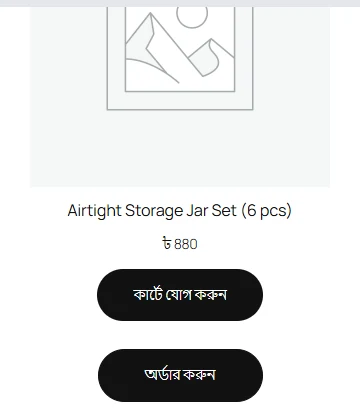
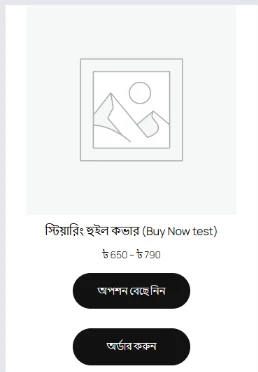
A product that needs a size or colour shows “Choose options” and “Order now” on its card; both open the product page, where the customer picks the size. A sold-out product has no Buy Now at all, and WooCommerce's “Read more” becomes “See details”, which does not read like a link to a blog post.
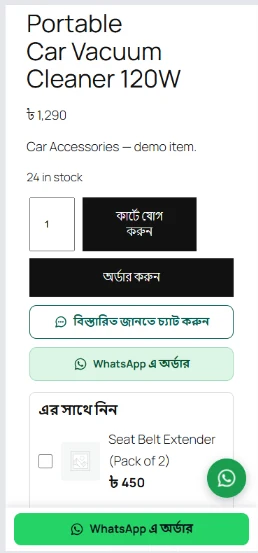
On the product page: “Order now” on its own row under the quantity and “Add to cart”, before WhatsApp Order's buttons. A quantity of 2 reaches the checkout as 2. Ask for more than the stock and only what is there goes, with “Only 2 left in stock” on the checkout.
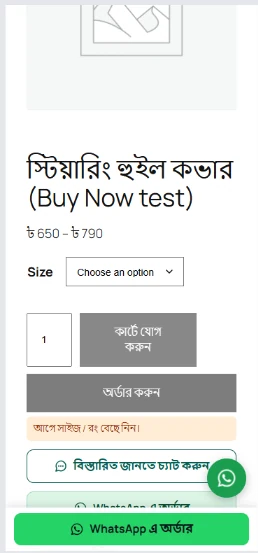
A press with no size chosen sends nothing; under the button it says “Choose a size / colour first.” With a sold-out size chosen it says “This size / colour is out of stock right now.”
What a press does: as it ships, it orders that product alone. Whatever was already in the customer's cart is set aside, and a line appears at the top of the checkout: “Only this product is being ordered. The other 1 item in your cart is kept and will be back in your cart after the order.” Beside it, a link “Order them all together”, which puts the two carts together.
Once the order is placed, or when the customer goes back to the shop without ordering, the earlier cart comes back as it was. The pressed product is not added to it.
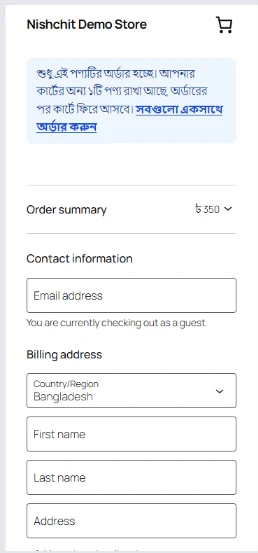
Why this way: when an old item slips into a cash-on-delivery parcel, customers often refuse the whole parcel. Emptying the cart instead throws away everything they had chosen. So the cart is set aside and handed back afterwards.
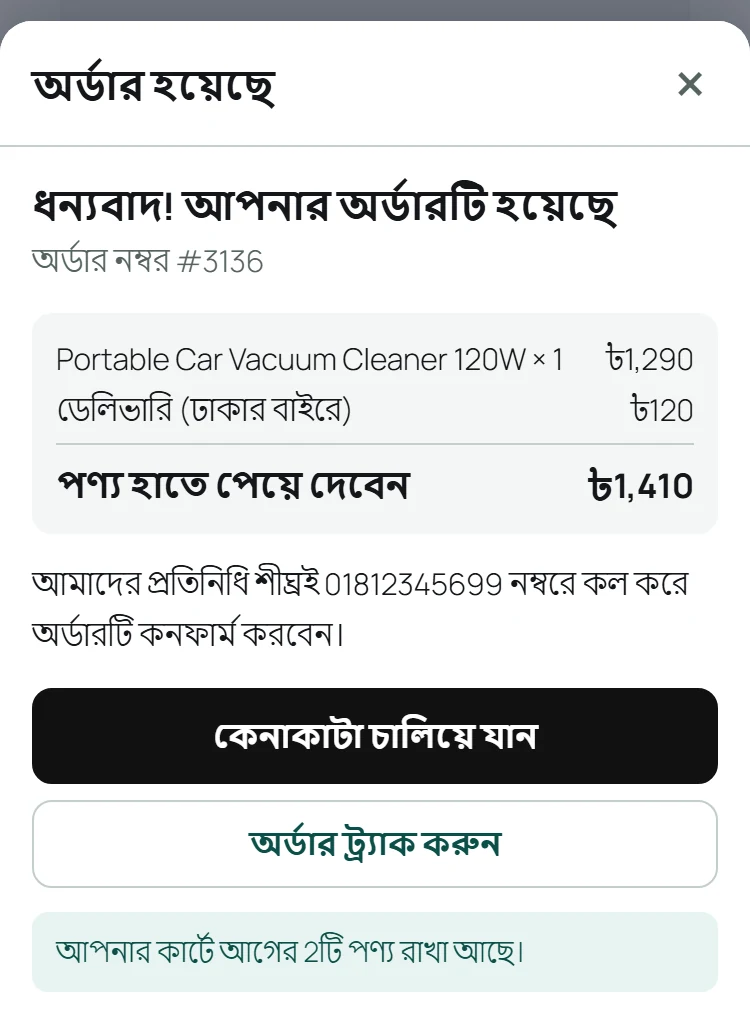
With Floating Checkout on: pressing “Order now” opens its popup form over the page instead of the checkout page, for that product alone. Closing the popup puts the cart back as it was; after the order, under the thanks, it says “Your earlier 2 items are still in your cart.” Without Floating Checkout, or with it off, a press opens WooCommerce's checkout page. The popup in full is in the Floating Checkout guide.
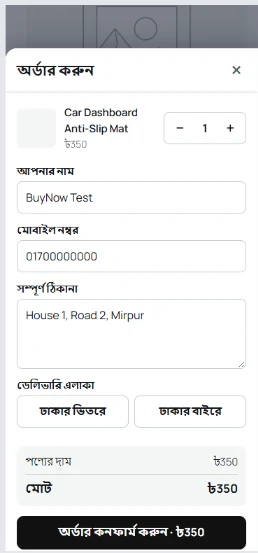
- Smart Upsell's ticks: when a customer ticks products in the product page's “Frequently bought together” box and then presses “Order now”, the ticked products go into the same order, on the checkout page or in the popup.
- Pre-order products: with Pre-Orders on, a pre-order product shows one button, in Pre-Orders' words (“Pre-order now” to start with), and Add to cart is hidden there. A pre-order product always goes into an order on its own.
- Your theme's own Buy Now: a Buy Now from WoodMart (its sticky bottom bar too), Flatsome or PI WebSolution is hidden to start with and ours shows in its place, so a page never has two buy buttons. You can keep the theme's on product pages instead (step 5 below).
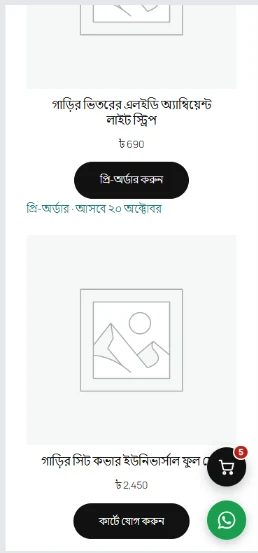
Everything customers read starts in Bangla, as in the pictures, and every word can be changed in the settings (step 3 below).
Setup
Steps 1–5-
1
Switch the add-on on
On the Nishchit → Add-ons page, Buy Now's card says Free where the price would be, with a switch beside it; there is no Get it and nothing to buy. Switch it on and save, then press Open settings. The add-on's own page has a switch at the top too. Switched off, none of it stays in your shop, and the button words go back to WooCommerce's.
It works with the starting settings. After you change and save something, clear your site's page cache (LiteSpeed, WP Rocket and the like) so cached pages get the new buttons and words too.
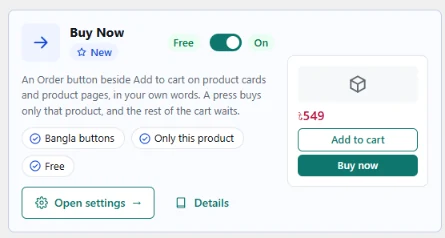
Buy Now's card on the Add-ons page: Free, the switch, Open settings and Details -
2
Which button where
Where the button shows: three places, each with Add to cart and Buy Now switched on or off on their own. To start with both are on for shop and category cards and on the product page; related products get Add to cart only, so the page's own product keeps the attention.
For “Order now” alone on cards, switch cards' Add to cart off. Add to cart hides only where Buy Now shows, so a product that cannot be bought now keeps its own link.
Only in these categories and Never in these categories: pick categories in the two boxes. With the first left empty, every product gets the buttons; whatever you put in the second never does.
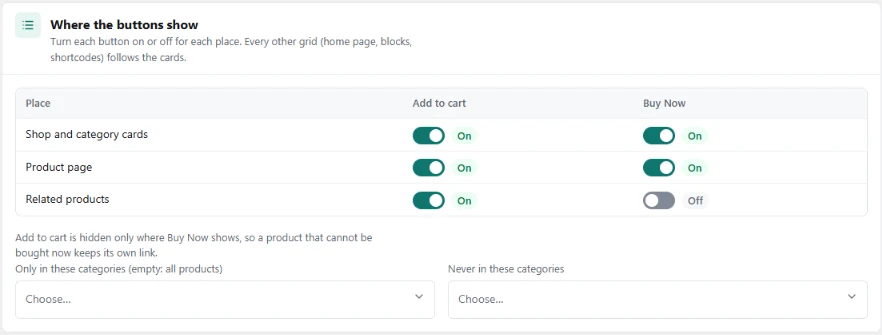
The “Where the buttons show” panel: switches for two buttons in three places, and the two category boxes -
3
Button text
Button text: eight boxes, each showing its starting words in grey. Leave a box empty and the starting words stay.
Cards, product page, related products: Buy Now“Order now”, changeable separately in each of the three places.
Cards, product page, related products: Add to cart“Add to cart”, also separate in each of the three.
Product with options (cards)“Choose options”, in place of WooCommerce's “Select options”.
Cannot be bought now (cards)“See details”, in place of “Read more” on a sold-out card.
Each can be up to 60 characters, but keep Buy Now's short: on a phone's two-column grid a button has only about 130 pixels. Whatever language the plugin's screens are in, customers read the words you gave.
Screenshot coming soonThe “Button words” panel: eight boxes, an empty one keeps the starting words -
4
What a press does
A press: «Buy only this product» to start with, as you saw above. The other is «Add it, check out the whole cart»: the product joins the cart and the whole cart is ordered together, like WoodMart's Buy Now. If the product is already in the cart, the quantity does not grow; it becomes the quantity pressed.
Then go to: the checkout page (to start with) or the cart page. It applies only to «check out everything»; «Buy only this» always goes to the checkout.
Tell the customer on the checkout that the rest of their cart is waiting: ticked to start with. This is the line at the top of the checkout, with its “Order them all together” link.
Open the checkout in a popup on the same page: this says where Floating Checkout stands in your shop. When it is on, and Buy Now buttons is ticked under its “Opens from” (it is to start with), a press opens the popup, and «only this or everything» above travels with each press. Without Floating Checkout, this shows its price and a button to get it.
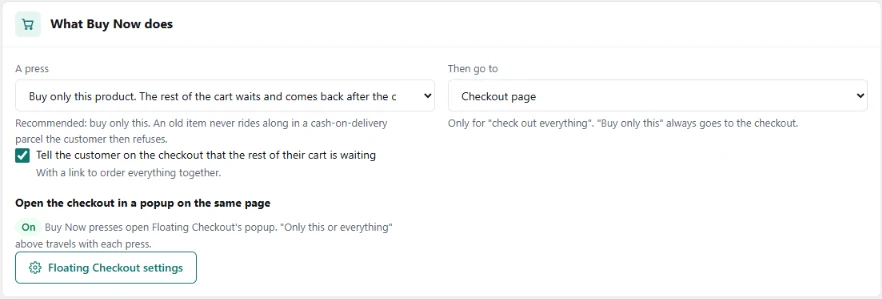
The “What Buy Now does” panel: only this product or everything, where it goes, the checkout line and the popup -
5
Look
Button colour: «Match my theme» to start with, read off your theme's Add to cart button. Or «My own colour», or «Outline». A light colour is darkened until white words read on it. The corners, padding and text size come from the theme's button beside it.
On cards: Buy Now under Add to cart (to start with) or above it.
Your theme's own Buy Now: «Hide the theme's, show ours» to start with. The other is «Keep the theme's on product pages»: then ours does not appear on product pages, only on cards. Known today: WoodMart (its bottom bar too), Flatsome and PI WebSolution.
A note at the top of the page says whether your product pages already have a Buy Now. An unknown “Buy now” is never hidden, only reported; then switch one of the two off. After changing theme, press Check my theme again.
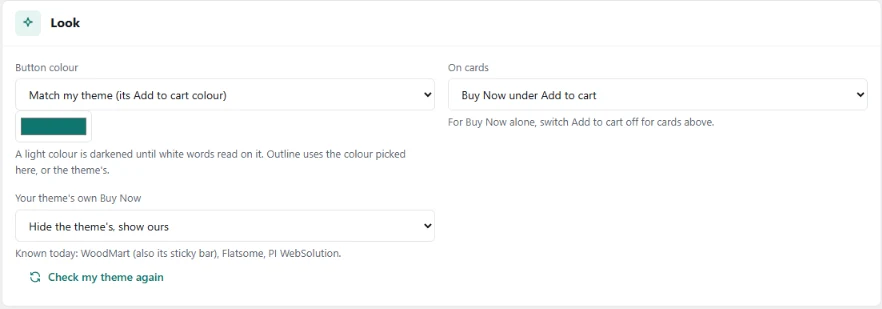
The “Look” panel: button colour, where it sits on cards, and your theme's own Buy Now
With your other add-ons
Nothing to setWhen it is on, “Order now” opens its popup instead of the checkout page, for that product alone. The cart comes back when the popup closes or after the order. Floating Checkout is ৳75 a month; Buy Now works in full without it.
Products ticked in “Frequently bought together” on the product page go along with “Order now”.
A pre-order product gets one button, in Pre-Orders' words, and goes into an order on its own.
On the product page “Order now” sits before WhatsApp Order's buttons; with both on, neither covers the other.
The order goes through the real cart, so offer prices apply to Buy Now orders too.
A sold-out product never shows Buy Now; with Restock Alerts on, its form shows there instead.
Tips
What works- Clear the page cache after changing a setting. Pages cached by LiteSpeed or WP Rocket show new buttons and words only once the cache is cleared.
- One buy button per page. Two different “buy” buttons make the customer hesitate. If your theme has a Buy Now, pick one in step 5.
- The order word only on the order button. A button that says “Order now” should really lead to the order, and the cart button should carry the cart word. Otherwise customers think they have ordered, and leave.
- Keep card words short. On a two-column phone grid long words break onto two lines.
FAQ
Buy NowIs Buy Now really free?
Yes. It runs on any Nishchit licence, free and trial licences included. There is nothing to buy, it never appears on your licence bill, and the other add-ons' bundle never counts it. You only switch it on on the Add-ons page.
Does a press empty the customer's cart?
No. The rest of the cart is set aside and only the pressed product is ordered. After the order, or when the customer goes back without ordering, the cart returns as it was. “Order them all together” on the checkout orders both together.
I want the whole cart ordered together. Can I?
Yes. In step 4, choose «Add it, check out the whole cart» under “A press”. The product then joins the cart and the whole cart goes to the checkout, or to the cart page if you prefer.
Why does my product page show two Buy Now buttons?
Your theme or another plugin has a Buy Now we do not know, so it was not hidden; the top of the settings page says so. Switch the other plugin off, or switch our Buy Now off for product pages. Tell us the theme's name and we will add it to the known list.
Can a product with sizes or colours be ordered straight from its card?
No, both buttons on its card open the product page, because there is no order without the size. Pick the size there and press “Order now”, and that size is ordered.
Can I see how many people pressed the button?
Not yet; it is coming. With Floating Checkout on, its counts show how many popup orders came from a Buy Now press.
Price: free. It runs on any Nishchit licence, free and trial licences included. Nothing to buy, nothing on your bill, and the paid add-ons' bundle never counts it. All add-ons and prices
Add-ons run with a Nishchit WooCommerce plugin licence. No plugin yet? see the licence prices, or start with the 7-day trial.