Add-on guide · ৳75 a month
Offers: WooCommerce quantity discounts — buy more, pay less
Nishchit's WooCommerce quantity discount plugin: “2 for ৳999” prices, combos, cart discounts and free delivery above an amount. The prices set themselves; nobody works them out by hand.
With cash on delivery a parcel costs about the same whether it holds one item or three, so it pays when a customer takes more at once. Set those prices once with Offers: they apply on the website by themselves, and quantity prices and combos stay the same on desk, app and AI orders too.
What you need: nothing extra. To get the most from the margin guard, have each product's purchase price entered on Nishchit's Stock page.
Four kinds of offer
Any one, or several together“2 for ৳999, 4 for ৳1,699”: the more they take, the less each piece costs.
“These 3 together for ৳1,299”: one price for several products taken together.
“Over ৳1,500, ৳100 off”: one discount on the whole cart.
“Over ৳2,000, delivery is free”: after a set amount or number of pieces.
What the customer sees
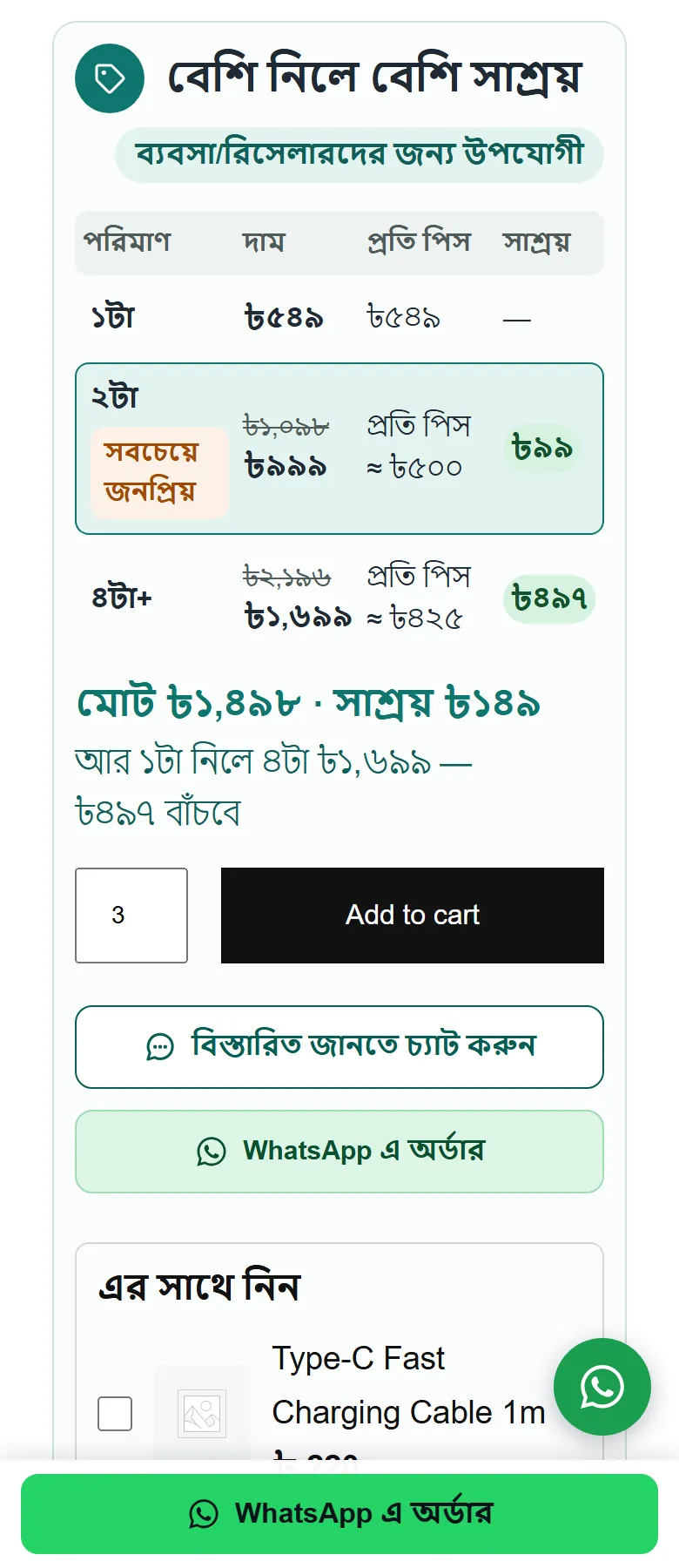
From product page to thank-youWith a quantity offer, the product page gets a box above Add to cart: “The more you take, the more you save”, with a table below. For a ৳549 product with 2 for ৳999 and 4 for ৳1,699, the table looks like this:
| Quantity | Total price | Per piece | Saving |
|---|---|---|---|
| 1 | ৳549 | ৳549 | — |
| 2 | ≈ ৳500 | ৳99 | |
| 4+ | ≈ ৳425 | ৳497 |
Whatever number of pieces the customer picks, that row of the table is lit, and tapping a row sets the quantity to it. Under the table come the total and the saving, for example with 3 picked “Total ৳1,498 · You save ৳149”. If the next step saves more, a line appears too: “Take 1 more and get 4 for ৳1,699 — save ৳497”. Under the box sit three small reassurances: delivery time, cash on delivery and easy returns.
It never offers more than the stock. On a product whose stock is counted (with backorders off), no row bigger than the stock shows in the table, the “take one more” line never points past it, and with only 1 in stock there is no box at all. When each size has its own stock, each size goes by its own.
Combos, cart offers and free delivery do not appear in the product-page box; they show in the cart.
In the cart and at checkout the prices set themselves: the old price struck through, the offer price beside it, and under the product name “Offer: 2 for ৳999 · You save ৳99”. A cart offer appears as a separate discount line. Before the total comes a “Your saving” row, and how much more is needed for free delivery, such as “Spend ৳301 more for free delivery”. Once the condition is met every delivery rate except pickup becomes ৳0, with “Free delivery” beside its name.
After the order the thank-you page says “Thank you! You saved ৳99 on this order.”, and on the invoice the line carries “Offer: 2 for ৳999”.
What customers see starts out in Bangla; the table heading, the reassurance row and the “take one more” line can be changed in the settings. On this page their words are shown in English.
On a block-built cart and checkout the offer prices, discount lines and free delivery still apply, but the “Your saving” row and the “Spend ৳… more for free delivery” line do not show. Those two are only on the standard (classic) cart and checkout.
Setup
Steps 1–6-
1
Switch the add-on on
On the Nishchit → Add-ons page, switch on this add-on's card and save, then press Open settings. The add-on's own page has a switch at the top too, which also turns it on and off.
The Offers page has the list of offers and four buttons: add a quantity offer, a combo, a cart offer or free delivery.
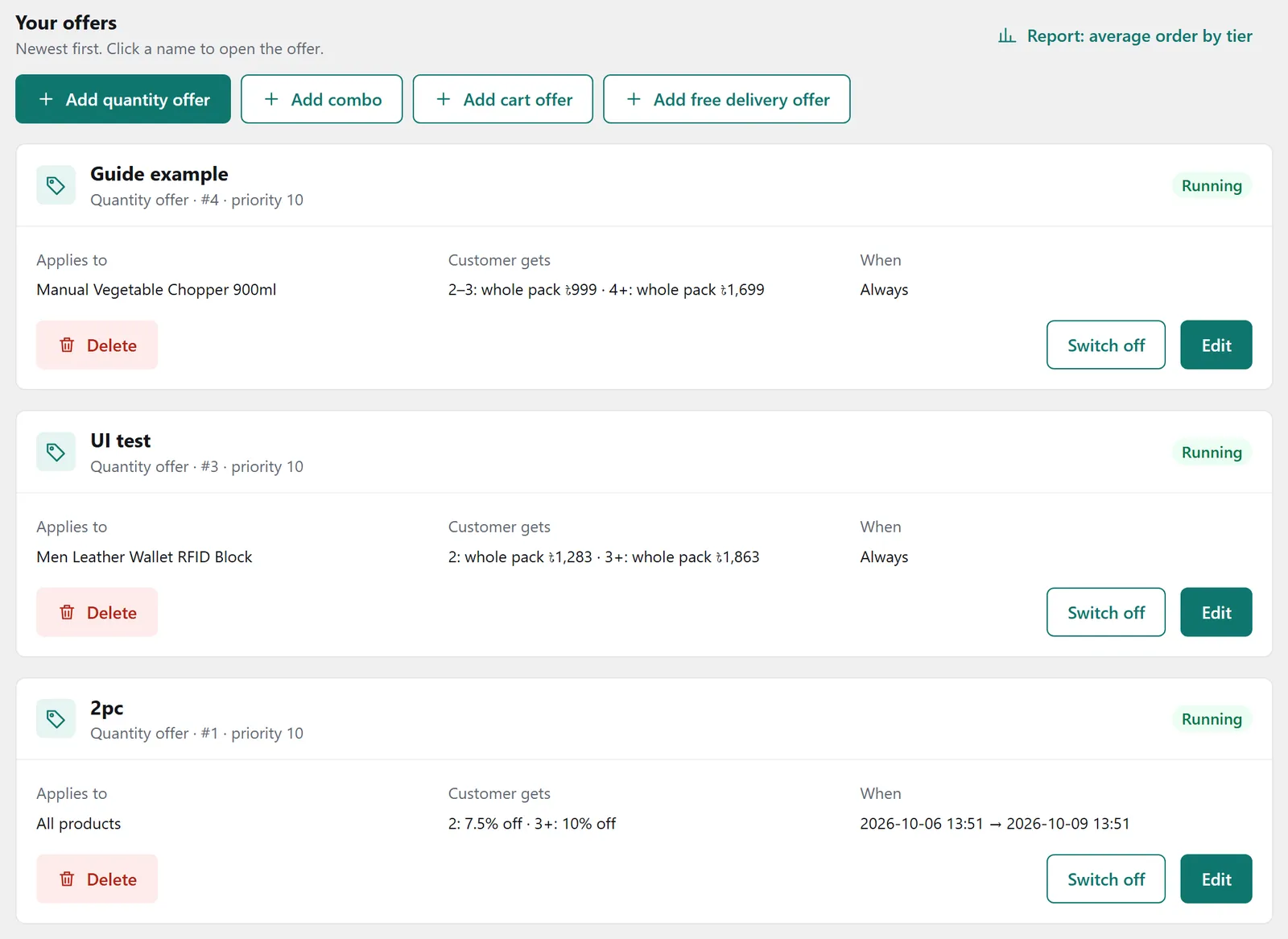
The “Offers” section: running offers and the four buttons for adding a new one -
2
Make your first quantity offer
Press “Add a quantity offer”. Give it a name first; the name is only for you and the report. Then “Which products it applies to”: type a name to find a product or size, or pick a category or tag. Picking a category brings in the categories inside it, and you can leave some products out too.
Counting pieces: by default pieces are counted per product, all sizes and colours together, so one red and one blue make “2”. For “any 3 for ৳999”, choose counting across the whole offer.
Then the “Price steps”. In each step:
From how manySay 2. A step runs until the next one begins; the last step has no upper limit. The price of 1 is the product's own price.
TypeDefault: a price for the whole pack, so 2 for ৳999 means exactly ৳999. The others: price per piece, % off, taka off each piece.
Amount (৳ or %)Taka or a percentage, depending on the type.
What the customer readsOptional. Left empty, it is written for you, such as “2 for ৳999”.
BadgeOptional, beside that row in the table. Such as “Most popular”.
At the pack price, 3 pieces are charged at the same rate: with 2 for ৳999, 3 cost ৳1,498. Every offer rounds down to the taka, so nobody pays more than the table says, and never more than the product's own price. Finally, press “Save offer”.
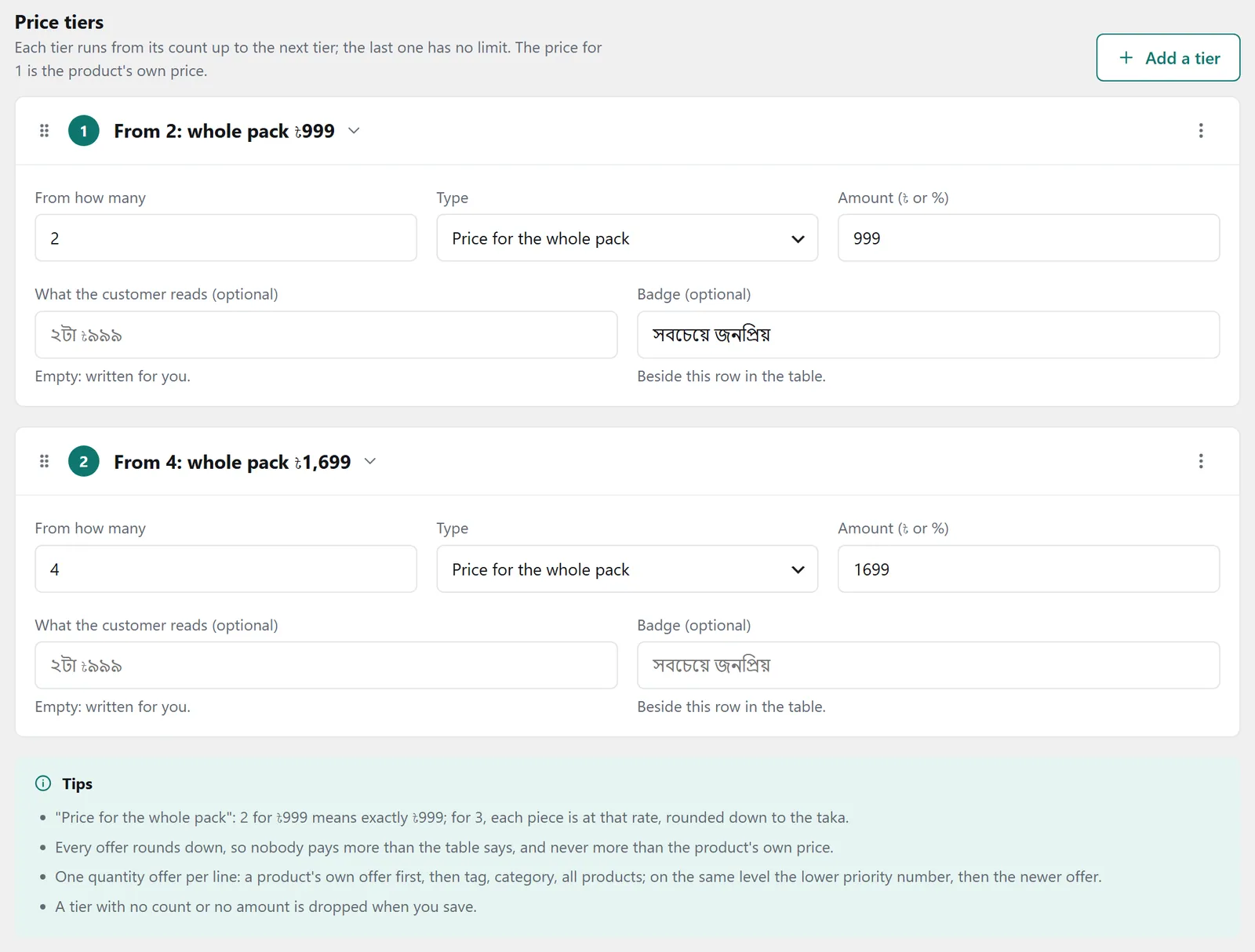
The “Price steps” section: two steps, each with its starting count, type and price -
3
Dates and priority
“Starts” and “Ends” are in Dhaka time. Left empty, it starts now and runs for as long as you keep it on. Give an Eid offer an end time and it stops by itself.
Priority defaults to 10: when several offers match, the lower number goes first. A new offer is created switched on; you can switch it off from the list at any time.
-
4
Check the margin guard
Once a quantity offer is saved, a table appears below it: the price of one piece at each step, with the purchase price beside it. Below the purchase price the cell is red, below your minimum margin it is orange, and grey when the Stock page has no purchase price. The minimum margin can be changed in the settings; the default is 15%.
Even red, the offer is saved; it only warns you. Whether to sell at a loss is your decision.
-
5
Combos, cart offers and free delivery
Combo: the products and how many of each make a set, then “Price of one set”. When the cart or a desk order holds them all, each set goes at the combo price, shared out in proportion to the products' own prices. Quantity offers do not apply to combo pieces, and extra pieces go at their own price.
Cart offer: the cart amount, optionally a minimum number of pieces, and the discount (in taka or as a percentage of the subtotal). It is worked out on the subtotal after quantity offers and combos. When several cart offers match only the best one applies, unless an offer has “Adds to other cart offers” ticked.
Free delivery: from an amount, or from a number of pieces, or both. By default meeting either one makes delivery free. The amount is checked on what is left to pay after every offer and coupon. Optionally “Inside Dhaka only”: the address is read the way a courier reads it, and until an address is given the cart says “Free delivery inside Dhaka”.
-
6
Set up the box and the wording
“Settings” sits below the list. What you can change, with the defaults:
Where the table sitsAbove Add to cart (the default), below it, or under the price. The whole table can be switched off.
Heading above the tableDefault “The more you take, the more you save”. Optionally a badge beside it, such as “Good for resellers”.
Reassurance rowThree lines: “1-2 days in Dhaka / 3-4 days outside”, “Cash on delivery”, “Easy returns”. Whatever you leave empty does not show.
The “take one more” lineThe “take 1 more…” line on the product page and in the cart, and the “how much more” line for free delivery. On.
In the cart and the orderThe offer written on the order line, how much was saved on the thank-you page, the name of the saving row (“Your saving”) and the words beside a rate once it is free (“Free delivery”).
Finally, press “Save settings”.
The reassurance row's default words are not your shop's promises. Write your real delivery times and return terms, and delete whatever is not true.
Which price wins
When several offers match- A price typed on the desk. That line always keeps it.
- Combos first. A line taken by a combo gets no quantity offer.
- One quantity offer per line. The product's own offer first, then tag, category, and the all-products offer last; at the same level the lower priority number, then the newer offer.
- When the sale price is already lower. If the product's sale price is below the offer price, the sale price stays.
- Coupons. Percentage and product coupons do not apply to lines at an offer price, unless the coupon's Usage restriction has “Also on offer prices” ticked. Fixed cart coupons apply to the whole cart as before.
Desk, app and AI orders
The same price on phone ordersOn the order desk's New order, entering the product and quantity sets the quantity-offer and combo prices, with a chip beside it saying which offer and how much is saved. If the offer price falls below the purchase price, the chip warns you. A price typed by hand stays. Editing an order and changing the quantity works the offer price out again. The app and AI order get the same prices.
Cart offers and free delivery are website-only. Desk, app and AI orders do not get them: the desk shows “(website only)” beside a cart offer, and the delivery charge is whatever you type.
What the report shows
Average order by stepBeside the list of offers is “Report: average order by step”. Pick the last 7, 14, 30 or 90 days; the default is 30. At the top, four figures: how many orders (cancelled and failed left out), the average order with an offer, the average without one, and the total discount given.
Below, each step of each offer has its own row: how many orders, how many pieces at that price, the average order, the discount, and how many were delivered, returned and are still open. Orders without an offer come last, for comparison. Cart offers and free delivery are not counted in this report.
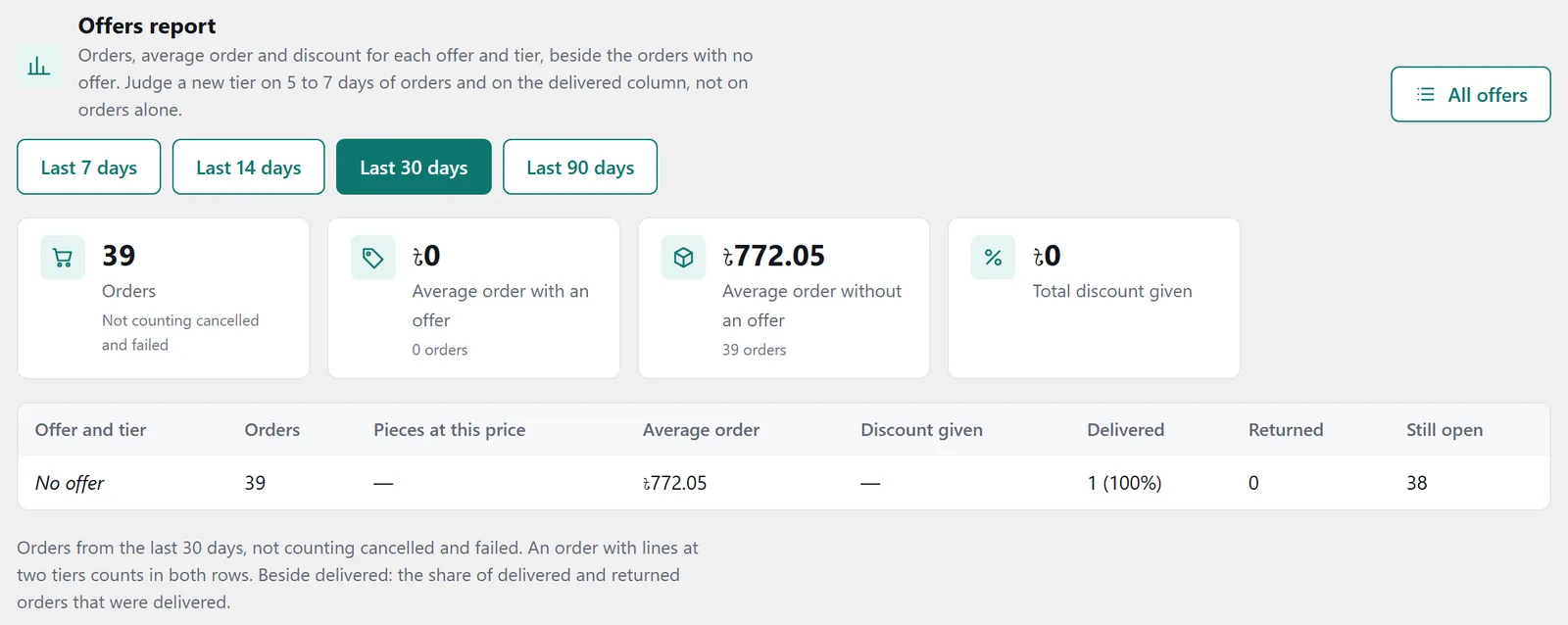
Judge a new step on 5 to 7 days of orders, and look at the delivered column, not just the number of orders. A big order that comes back is no gain.
Tips
What works- Start with your best-selling product. 2 at a round price, 4 at a better one.
- Use round prices. “2 for ৳999” sticks in the mind; “2 for ৳1,037” does not.
- Enter purchase prices. With purchase prices on the Stock page, the margin guard tells you which step loses money.
- Give Eid and sale offers an end time. The offer stops by itself; nobody has to remember to switch it off the next morning.
FAQ
OffersDoes free delivery apply to orders taken by phone?
No. Free delivery and cart offers are only for the website cart. Desk, app and AI orders get quantity offers and combos; the delivery charge is whatever you type.
Why does a piece show as ৳499.50?
The pack price of ৳999 divided by 2 is ৳499.50 a piece. The line total stays exactly ৳999. How many decimal places the cart shows depends on your shop's price settings.
Does free delivery make express delivery free too?
Yes. Once the condition is met, every delivery rate except pickup becomes ৳0, express included.
Does a coupon take the cart offer away?
No. The cart offer is worked out before coupons, so it stays even if a coupon takes the subtotal under its minimum.
Does deleting an offer change the prices of past orders?
No. Orders that got the offer price stay as they were. The report still shows a deleted offer under its old name.
Price: This add-on is ৳75 a month. Three or more add-ons cost ৳199 in all. The first payment covers only the days left until the licence renews; after that it comes with the renewal bill. How billing works
Add-ons run with a Nishchit WooCommerce plugin licence. No plugin yet? see the licence prices, or start with the 7-day trial.