Add-on guide · ৳75 a month
Pre-Orders: WooCommerce pre-orders — sell before the stock arrives
With Nishchit's WooCommerce pre-order plugin, take orders early, with an advance. The orders wait in their own status, never go to the courier before release, and when the goods arrive one press on the desk confirms them all.
A new shipment is late and the page says “out of stock”: the customer goes to another shop. With Pre-Orders you take the order before the goods arrive, with a small advance. The customer sees when it will come, you see how many are waiting, and when it arrives they are all confirmed together.
What you need: to take an advance, at least one online payment method in WooCommerce, such as bKash or SSLCommerz. To text customers, a Push SMS balance and Text customers switched on under Nishchit → Features.
What the customer sees
From product page to SMSA pre-order product shows a “Pre-order now” button in place of Add to cart. On the product page a coloured box says: “This is a pre-order product. Expected to arrive …; pay … taka now as an advance and the rest on delivery.” The date and the advance fill themselves in; with no advance, that sentence drops out by itself. Shop and category pages show a short line under the product: “Pre-order · arrives …”.
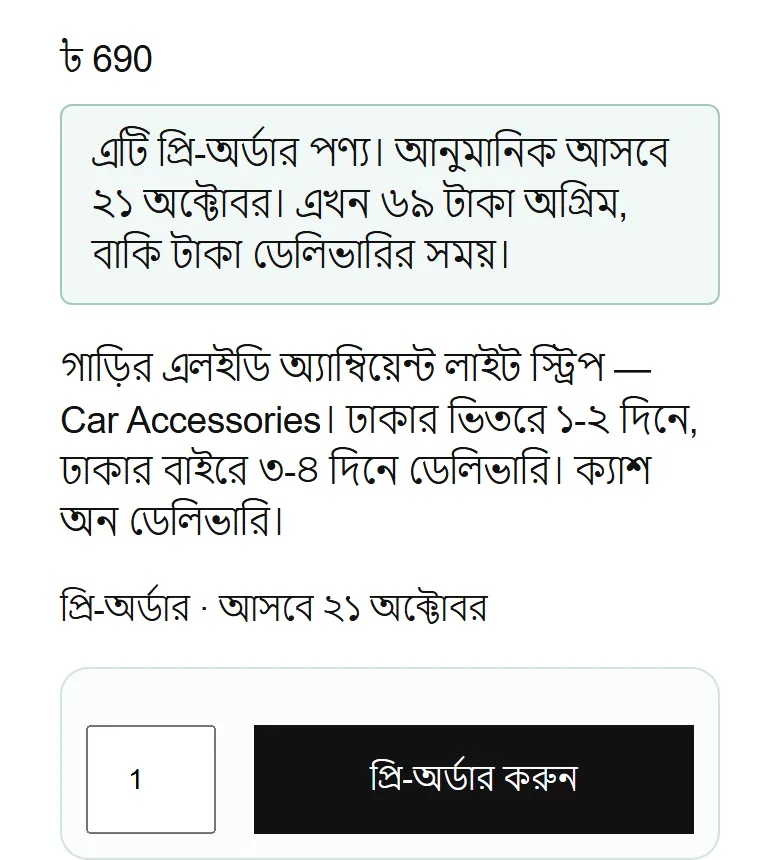
A pre-order goes alone in its order. More pieces of the same product are fine, but if the cart holds another product, another pre-order or another size of the same product, the customer sees: “Pre-order products must be ordered separately. Finish ordering the other items in your cart first, then place the pre-order.”
When an advance is due, checkout hides cash on delivery; the advance is paid online and the courier collects the rest. On the standard (classic) checkout two rows appear under the total, Pay now and Pay on delivery, and the order button says “Confirm pre-order”.
When the order is taken the customer gets an SMS. The default text, in Banglish:
SMS{site}: Order {order} pre-order hishebe peyechi. Product ashbe {arrival_date} er moddhe. Ashle SMS e janabo.
{site} becomes the shop name, {order} the order number and {arrival_date} the arrival date. Releasing, changing the date or cancelling sends another SMS. Which SMS go out is up to you (step 6 below).
What customers see starts out in Bangla and the SMS in Banglish; you can change them in the settings. On this page their words are shown in English.
Setup
Steps 1–7-
1
Switch the add-on on
On the Nishchit → Add-ons page, switch on this add-on's card and save, then press Open settings. The add-on's own page has a switch at the top too, which also turns it on and off.
If there is any warning at the top of the Pre-Orders page, read it first: for example, without an online payment method no advance can be taken, and with Text customers off no SMS goes out.
-
2
Switch pre-order on for a product
Edit the product in WooCommerce. A new tab appears, Pre-order:
Pre-orderTick it and the product is a pre-order, in stock or not. With sizes or colours, all of them; a single size can also be set on its own in its own box.
Expected arrival dateCustomers see this date. Nothing is released on that day by itself unless you tick “Release on the date” below.
AdvanceLeft empty, the shop setting applies. Or a separate advance for this product.
Pre-order charge (per piece)An optional extra amount. A minus figure makes it a discount, such as -100.
Pre-order limit (pieces)Optional. Once this many pieces are pre-ordered, no more are taken. Empty or 0 means no limit.
Release on the dateOnly for goods made in the country, where the date is certain. On the morning of the date, the waiting orders move to Confirmed by themselves.
A pre-order product sells even at stock 0, and the stock goes below zero. When the goods arrive, add the stock as you always do.
Screenshot coming soonThe Pre-order tab in the product editor: the tick, date, advance and limit -
3
How much advance to take
In the “Advance” panel, “How to take it” defaults to 10% of the total. The other choices: a fixed amount, the full price now, or nothing now (cash on delivery).
The percentage is of the whole order, delivery included, rounded up to the taka: 10% of a ৳1,990 order is ৳199. A separate advance set in a product's Pre-order tab applies to that product.
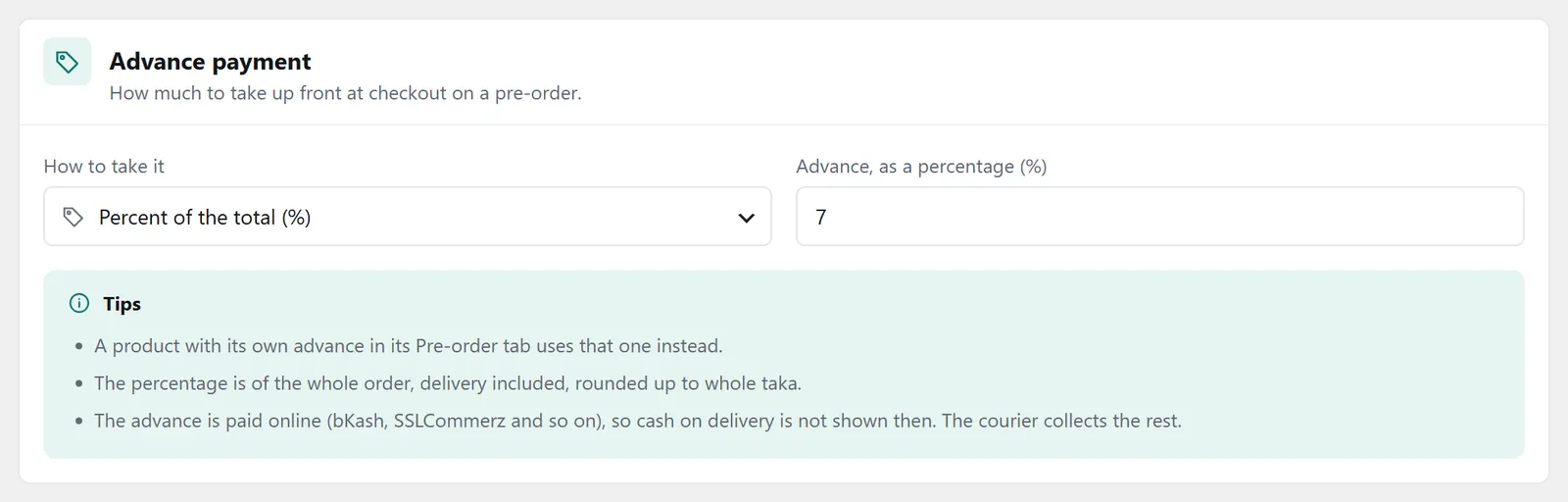
The “Advance” panel: how to take it, how much, and the tips beside it With only cash on delivery switched on, no advance can be taken. The customer then pays nothing up front and the courier collects the whole amount. For an advance, switch on bKash or SSLCommerz under WooCommerce → Settings → Payments, or set the advance to “nothing now”.
-
4
Pre-orders by themselves when stock runs out
Take pre-orders when stock runs out is off by default. Switched on, any product whose stock is counted (Manage stock) becomes a pre-order the moment its stock reaches zero, even without the tick. When the stock rises above zero again it is a normal product by itself.
Goods arrive in this many days defaults to 15: if the product has no date of its own, customers see the date 15 days from today. To keep a size out of this, choose “No, this variation is in stock” for that size.
-
5
What the customer reads
In the “What customers see” panel: the product button, the checkout button, the product-page message, the shop-page line, the cart label, the names for the charge and the discount, and what shows when an order cannot be taken. The product-page message and the shop-page line can use {arrival_date} {days_left} {advance} {slots_left}. Clear a box and save, and the default text comes back.
For a countdown to the arrival date, put this on any page:
[nishchit_preorder_countdown]. The countdown never appears anywhere by itself. -
6
Which SMS go out
The “Customer SMS” panel has five messages, each with its own switch and text, and shows how many SMS each takes:
When a pre-order is takenOn. Once, as soon as the order is Pre-ordered.
When you press releaseOn. The goods are here, it goes to the courier soon, and how much to pay on delivery.
When you set a new dateOn. There is a delay, and the new date.
When you cancelOn. The goods are not coming, and the order is cancelled.
When fewer arriveOff by default. Fewer have arrived, and tells those whose orders go with the next shipment.
The messages are in Banglish on purpose: in Bangla letters an SMS holds 70 characters, in English letters 160. At most 40 go a minute, so a release of 200 orders takes about 5 minutes to reach everyone. Numbers on the do-not-text list are never texted.
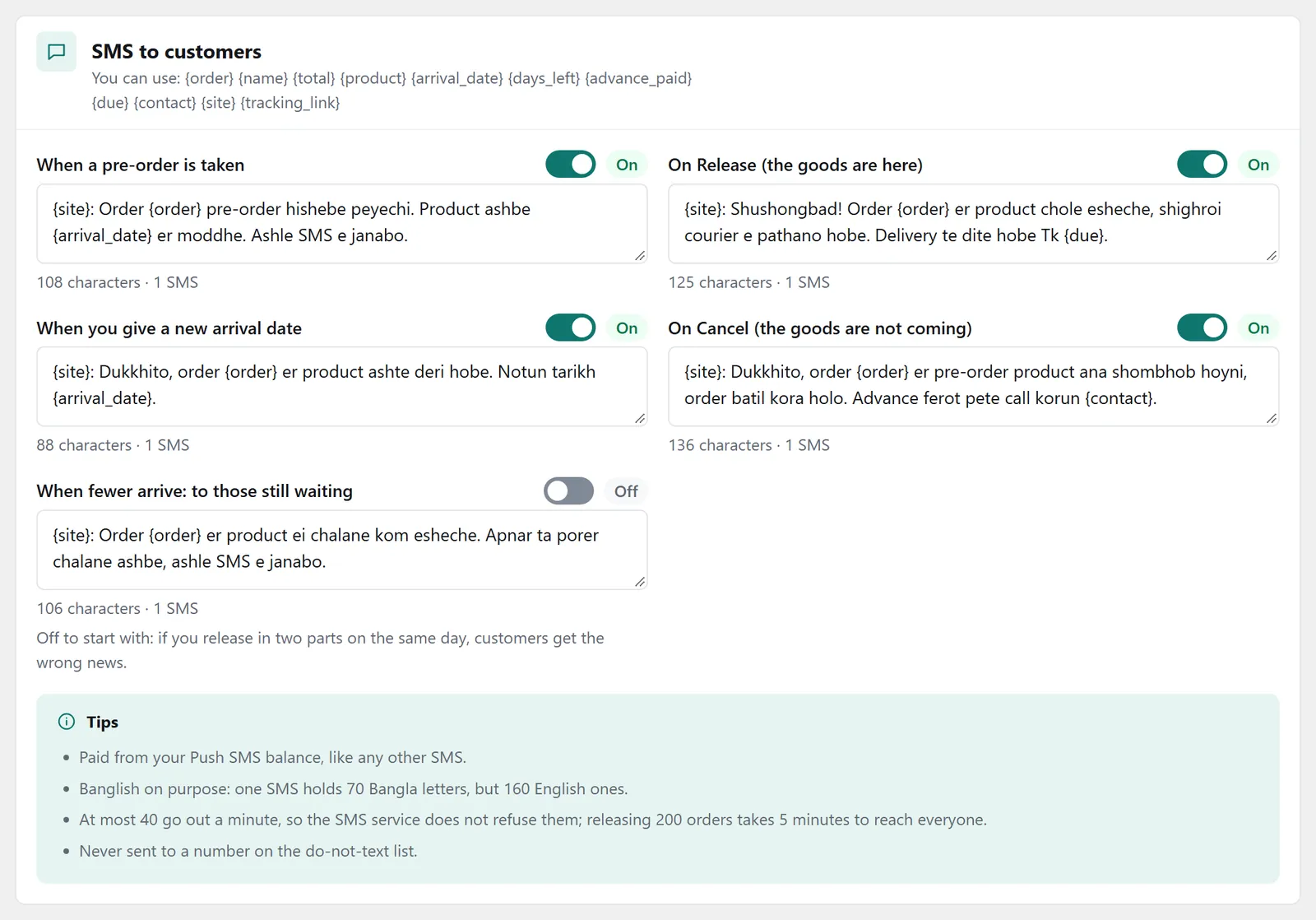
The “Customer SMS” panel: five messages, each with its switch, text and SMS count -
7
AI Call and test mode
If your shop has AI Call, choose in the “AI Call” panel when the call goes. The default is “On release”: the customer confirms once the goods are in hand, and pressing 2 cancels. The other two: as soon as the order comes in, or no call for pre-orders.
Test mode, while on, stops every pre-order SMS, date release and reminder; checkout and the desk carry on as usual. Finally, press “Save all changes”.
While it waits
The Pre-ordered statusA pre-order goes into its own status, Pre-ordered. On the desk the order is marked “Pre-order · due …”, and once the date passes “was due …”. Before release the order cannot be sent to the courier: it is stopped whether it is sent on its own or with many others.
Once the arrival date comes and orders are still waiting, staff phones get a reminder in the Nishchit app every day at about 10 am: have the goods arrived? Release them, or give a new date. If the product has “Release on the date” ticked, it releases itself that morning.
When the goods arrive: release
Pre-order boardAbove the order desk's Pre-ordered tab sits the Pre-order board: by product, how many orders, how many pieces, how much advance has been taken, when it is due, and how many slots are left if there is a limit. Each product has four buttons beside it.
-
1
Arrived, release
How many units arrived: type it in; leave it empty to release every order. If fewer arrived, whoever ordered first is released first, as far as the units go; nobody jumps the queue, and the rest keep waiting.
Two ticks: “Send customers an SMS”, and “Stop new pre-orders once all are released”. Optionally a note, which goes at the end of the SMS. Then press “Release”.
Every released order moves to your Confirmed status, the customer gets an SMS, and if AI Call is set to “On release” the call goes. After that, send the orders to the courier like any other.
Release does not change stock. When the goods come in, add the stock on the Stock page as usual.
-
2
Change date
If the goods are late, give a new date, today or later. The product's date and the date on every waiting order change, and everyone gets an SMS with the new date.
-
3
SMS everybody
One message of your own to everyone waiting. Each order fills in its own details: {name} {order} {arrival_date} {due} {advance_paid}. They go 40 a minute.
-
4
Cancel
The goods are not coming: the orders are cancelled and the stock goes back. Orders where an advance was paid are marked “Advance to give back”, with the amount. The money has to be returned by hand. A cancel cannot be undone, so be sure first.
Tips
What works- Set a limit. Take as many pre-orders as the shipment brings pieces. Otherwise some people will have to wait for the next one.
- Keep the date realistic. If it is late, change the date from the board; customers hear about it without anyone phoning.
- “Release on the date” only for certain dates. Nobody knows when imported goods will clear customs; releasing by hand is safer there.
- If fewer arrive, think before switching on the “When fewer arrive” SMS. Releasing in two parts on the same day can give customers the wrong news, so it starts switched off.
FAQ
Pre-OrdersCan a pre-order be taken together with other products?
No. A pre-order always goes alone in its order. More pieces of the same product are fine, but other products, or another size of the same product, need a separate order.
Why do the advance on the product page and at checkout differ?
The product page shows the advance on one piece's price, without delivery. At checkout the percentage is of the whole order with delivery, so the figure there can be a little higher.
What happens if fewer goods arrive?
When releasing, type how many units arrived. Those who ordered first are released; the rest wait in Pre-ordered. With the “When fewer arrive” SMS on, they learn that theirs comes with the next shipment.
Does the advance go back by itself when an order is cancelled?
No. The order shows how much to give back; the money is returned by hand, for example by bKash.
Can a product that is in stock be pre-ordered too?
Yes. Tick it in the product's Pre-order tab and it sells as a pre-order, in stock or not. To take pre-orders only when the stock runs out, switch on “Take pre-orders when stock runs out” in the settings.
Price: This add-on is ৳75 a month. Three or more add-ons cost ৳199 in all. The first payment covers only the days left until the licence renews; after that it comes with the renewal bill. How billing works
Add-ons run with a Nishchit WooCommerce plugin licence. No plugin yet? see the licence prices, or start with the 7-day trial.